
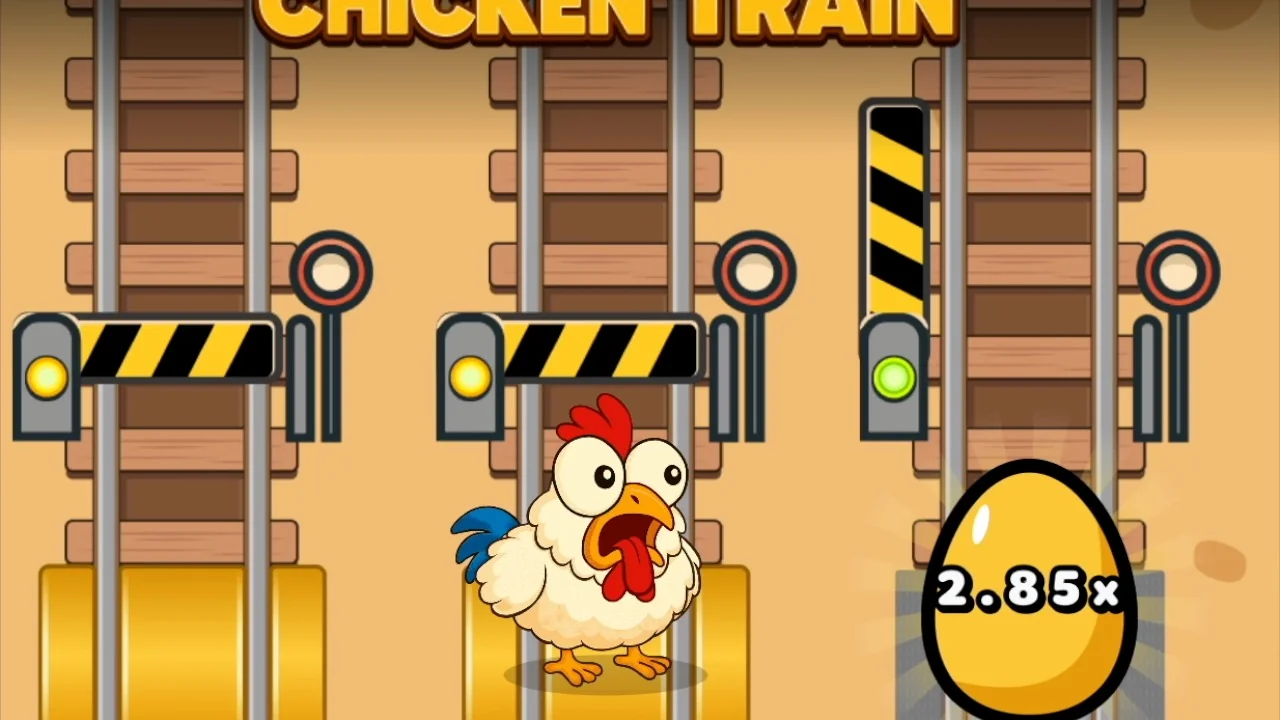
Mobile Access for a Faster Train Game
Chicken Train works well on mobile when the casino lobby is clean and the connection is steady. Treat any APK as an operator app, not as a standalone game download. The safest path is to visit the casino domain directly, confirm the HTTPS lock, open the provider or game search, and launch Chicken Train from inside the account. If an APK link comes from a mirror or a chat group, skip it; the game does not need that kind of shortcut.
Before switching from demo to real play, check how the mobile screen handles pressure points. Can you see the balance without scrolling? Are bet changes clear? Does the back button return to the lobby or close the session? These small details matter because a fast chicken-and-train theme can encourage quick repeat decisions. A useful mobile setup should make each round easier to understand, give you a clean way to stop, and keep bonus or deposit terms one tap away.
The Honest Truth About Chicken Train Mobile
Chicken Train is an HTML5 browser-based game built by a casino game provider. You play it through online casino websites or their mobile apps. The game itself runs inside a web browser — there's no native app to install. Think of it like a YouTube video: you don't download a separate app for each video, you watch it through the YouTube platform. Same concept here.
I've been playing Chicken Train for several months now, and I access it exclusively through my phone. The mobile experience is genuinely good — the HTML5 engine is well-optimized, touch controls work fine, and the game loads in under 3 seconds on a decent connection. You don't need to install anything to get that experience.
That said, there are legitimate reasons you might want something more "app-like" on your phone. Maybe you want a home screen icon for quick access, push notifications for casino promotions, or a full-screen experience without the browser address bar. All of that is possible — just not through a standalone Chicken Train app.
Here are your three real options, ranked from most involved to simplest:
- Casino APK (Android only) — Download the casino's own mobile app, then find Chicken Train inside it
- PWA shortcut (iOS and Android) — Add the casino website to your home screen for an app-like experience
- Mobile browser (all devices) — Just open the casino website in Chrome or Safari and play
I've tested all three approaches and I'll walk you through each one with step-by-step instructions. I'll also flag the security considerations — because downloading APKs from the internet does carry real risks that you should understand before proceeding.
Option 1: Android Casino APK Installation
Several casinos that offer Chicken Train also provide their own Android apps as APK files. These are casino apps — not Chicken Train apps. You install the casino's app, then find Chicken Train in their game library. The game itself still runs in a web view inside the app.
Why APK instead of Google Play? Because Google restricts real-money gambling apps in most countries. Casinos distribute their apps as direct APK downloads from their own websites instead. This is legitimate, but it does mean you need to enable a security setting on your phone.
Step-by-Step Installation
Visit the Official Casino Website
Open Chrome on your Android phone and navigate to the casino's website directly. I recommend operator sites you can check directly: 1Win, Fresh Casino, or LuckyStar. Do NOT search Google for "casino APK download" — the top results are often fake sites distributing malware. Always type the casino URL directly or use a trusted link.
Find the Mobile App Section
Look for a "Download App," "Mobile App," or Android icon link. It's usually in the site footer, the main menu, or a banner on the homepage. Some casinos show a pop-up on mobile automatically offering the app download. If you can't find it, check the FAQ or contact support.
Enable "Install Unknown Apps"
Before the APK can install, you need to allow your browser to install apps from outside Google Play. The exact path depends on your Android version:
- Android 8.0–12: Settings > Apps > Special Access > Install Unknown Apps > Chrome > Allow
- Android 13+: Settings > Security & Privacy > Install Unknown Apps > Chrome > Allow
- Samsung: Settings > Biometrics and Security > Install Unknown Apps > Chrome > Allow
After installation, I recommend turning this setting back off. Leaving it enabled permanently is a security risk — any website could prompt you to install something malicious.
Download and Install the APK
Tap the download button on the casino site. You'll see a browser warning saying "This type of file can harm your device" — this is standard for all APK files, not specific to casino apps. Tap "Download anyway." When the download finishes, tap the notification or open your Downloads folder and tap the APK file. Then tap "Install."
Open the App and Find Chicken Train
Launch the casino app from your home screen. Log in with your existing account or register a new one. Then search for "Chicken Train" in the game search bar, or browse to the Crash Games category. Tap on Chicken Train and the game will load inside the app. From here, gameplay is identical to the browser version — same bets, same risk levels, same rules.
Personally, I used the 1Win APK for about two months before switching back to browser play. The app worked fine, but I found it didn't add much over the browser experience. The main benefit was push notifications about promotions — but those got annoying fast and I turned them off anyway. Your mileage may vary.
Option 2: iOS PWA (Add to Home Screen)
If you're on iPhone or iPad, your best option is a PWA — Progressive Web App. It's a fancy name for a simple concept: you add the casino website to your home screen, and it opens in a full-screen browser window without the Safari address bar. It looks and feels like a native app, but it's just a bookmark with extra features.
This is actually what Apple intended for web apps before native apps existed. Steve Jobs originally wanted the iPhone to run web apps instead of native ones. The technology has improved massively since then, and modern PWAs can cache content offline, send notifications (on iOS 16.4+), and run in full screen.
Why No App Store Listing?
Apple's App Store guidelines are strict about real-money gambling. To list a gambling app, the developer needs gaming licenses for every country where the app is available, age verification systems that meet Apple's standards, and approval from local gambling regulators. Most online casinos — especially those operating under Curacao or similar licenses — don't qualify for App Store distribution in Western markets. That's why you won't find Chicken Train or most casino platforms on the App Store.
Step-by-Step PWA Installation
Open Safari (Not Chrome)
This is critical: you must use Safari. Chrome, Firefox, and other browsers on iOS do NOT support the "Add to Home Screen" PWA feature. Only Safari can create home screen shortcuts that open as standalone apps. Open Safari and navigate to your casino of choice.
Navigate to the Casino Website
Go to the official casino site — 1Win, Fresh Casino, or whichever platform you use for Chicken Train. Log in if you want the PWA to remember your session. Some casinos have a dedicated PWA-optimized version of their site that loads faster.
Tap the Share Button
Find the Share icon at the bottom of Safari — it's a square with an upward-pointing arrow. On iPad, it might be in the top-right corner near the address bar. Tap it to open the share sheet.
Select "Add to Home Screen"
Scroll down in the share sheet until you find "Add to Home Screen." If you don't see it, scroll further — Apple sometimes hides it below the fold. Tap it. You can rename the shortcut to whatever you want (I called mine "Chicken Train" for clarity). Then tap "Add" in the top-right corner.
Launch from Your Home Screen
The casino icon now sits on your home screen alongside your regular apps. Tap it to launch. The site opens in a full-screen window without the Safari toolbar — it looks just like a native app. Navigate to Chicken Train and play. The experience is smooth, and on my iPhone 14, I can't tell the difference between this and a native app during gameplay.
One thing to know: Safari can sometimes clear PWA data when your phone runs low on storage. If you get logged out randomly, that's probably why. Just log back in. This happens less on newer iPhones with more storage, but it's worth mentioning because it caught me off guard the first time.
Also, if you're on iOS 16.4 or later, some casino PWAs can send push notifications — but this depends on whether the casino has implemented the Web Push API. Most haven't yet as of March 2026, but it's coming.
Option 3: Play in Your Mobile Browser
This is what I actually use most of the time, and honestly, it's the simplest option. No installation, no APK security warnings, no PWA setup. You just open your browser, go to the casino site, and play Chicken Train.
Chicken Train is built with HTML5 and runs entirely in your browser. The game engine is lightweight — it downloads about 2-3 MB of assets on first load, then caches them locally. Subsequent visits load in 1-2 seconds. On a 4G connection, I've never experienced buffering or loading delays. The game was designed for mobile browsers from the ground up.
How to Get Started
- Open Chrome (Android) or Safari (iOS) on your phone
- Navigate to your casino of choice — if you need a recommendation, check my casino comparison on the homepage
- Log in or create an account
- Search for "Chicken Train" or browse the Crash Games section
- Tap to play — that's it
For the best experience, I recommend a few tweaks:
- Turn your phone to landscape mode — Chicken Train shows more of the track and the controls are easier to tap
- Use auto-cashout — the Withdraw button is small on mobile, and I've missed taps before. Auto-cashout at a set multiplier eliminates that problem entirely (see my strategies guide for recommended multiplier targets)
- Disable browser notifications — you don't need the casino spamming you with promotional pop-ups while you're trying to concentrate on the game
- Use Wi-Fi when possible — mobile data works fine, but a stable Wi-Fi connection means zero chance of a disconnect costing you a round. And always set auto-cashout as a safety net regardless of your connection
The browser approach has one disadvantage: no home screen icon (unless you manually bookmark it). But compared to the APK hassle or PWA setup, I'll take the extra 5 seconds of typing the URL. If quick access matters to you, just bookmark the casino site — every browser lets you add bookmarks to your home screen or favorites bar.
If you want to try Chicken Train before committing to a casino account, most platforms offer a free demo mode that doesn't require registration. Just open the casino site, find Chicken Train, and select "Demo" or "Play for Free."
System Requirements
Chicken Train is not resource-heavy, but it does need a reasonably modern device and browser. Here's what I've tested and confirmed works:
| Platform | OS Version | RAM | Storage | Browser |
|---|---|---|---|---|
| Android (Browser) | Android 8.0+ | 2 GB+ | ~50 MB cache | Chrome 90+, Firefox 95+ |
| Android (Casino APK) | Android 8.0+ | 3 GB+ | 80-150 MB | Built-in WebView |
| iOS (Safari/PWA) | iOS 15+ | 2 GB+ | ~50 MB cache | Safari 15+ |
| Windows (Desktop) | Windows 10+ | 4 GB+ | ~50 MB cache | Chrome 90+, Edge 90+, Firefox 95+ |
| macOS (Desktop) | macOS 12+ | 4 GB+ | ~50 MB cache | Safari 15+, Chrome 90+ |
A few notes from my testing:
- Devices with less than 2 GB RAM may experience frame drops during Bonus Run animations
- The casino APK itself takes 80-150 MB depending on the casino, but Chicken Train's game assets within it are still only about 3 MB
- Older Android devices (pre-2018) sometimes have outdated WebView components that cause rendering glitches. Updating Android System WebView from the Play Store usually fixes this
- On iOS, there's no way to update Safari independently of iOS — if you're stuck on iOS 14, you may have issues with some game features
If your device meets these requirements and the game still doesn't load properly, check the troubleshooting section below.
Mobile vs Desktop: Which Is Better for Chicken Train?
I've played over 200 sessions on both mobile and desktop. Here's my honest comparison:
| Factor | Mobile | Desktop |
|---|---|---|
| Screen Size | Smaller viewport; landscape mode recommended for full track visibility | Full track visible at all times; easier to monitor multiplier and controls simultaneously |
| Controls | Touch-based; Withdraw button can be tricky to tap precisely under pressure | Mouse click; larger target area, more precise for manual cashout timing |
| Performance | Smooth on modern phones (2020+); occasional frame drops on budget devices during Bonus Run | Consistently smooth; no performance issues on any desktop I've tested |
| Battery Impact | Moderate drain; expect about 8-10% per hour of active play on most phones | Not applicable (plugged in) |
| Data Usage | ~1-2 MB per session after initial cache; minimal ongoing bandwidth | Same data usage; no difference in network requirements |
| Convenience | Play anywhere, anytime — couch, commute, waiting room | Tied to desk; less spontaneous but more comfortable for long sessions |
| Multi-tasking | Can't easily switch between tabs without risking game state | Easy to monitor multiple tabs, check strategies, track results |
My verdict: For casual sessions (10-15 minutes), mobile is perfectly fine and more convenient. For longer sessions where I'm testing strategies or tracking results, I prefer desktop for the larger screen and easier multitasking. The actual game experience is nearly identical on both — it's the same HTML5 engine, same RTP, same mechanics. The difference is ergonomic, not technical.
One critical recommendation for mobile players: always use auto-cashout. I've said it before and I'll say it again — the mobile Withdraw button is too small for high-pressure manual timing. I've lost rounds because I tapped slightly off-target. Auto-cashout at a predetermined multiplier removes that problem entirely. Set it up before every session. My strategy guide covers recommended auto-cashout multipliers for each risk level.
Troubleshooting Common Mobile Issues
I've run into most of these problems myself and found solutions for each one. Here's what to do when things go wrong:
Game Won't Load or Shows Blank Screen
This is usually a browser cache or JavaScript issue. Try these steps in order:
- Clear your browser cache: Settings > Privacy > Clear Browsing Data > Cached Images and Files
- Make sure JavaScript is enabled (it's on by default, but some privacy extensions disable it)
- On Android, update Android System WebView from the Play Store — outdated WebView causes most rendering issues
- Try a different browser. If Chrome isn't working, try Firefox or Samsung Internet
- Disable any ad blockers or VPN temporarily — some casino game CDNs get blocked by aggressive ad filters
Lag and Frame Drops During Gameplay
If the chicken animation stutters or the multiplier display lags:
- Close other browser tabs and background apps — Chicken Train needs active memory to render smoothly
- Switch to landscape mode if you haven't already. Portrait mode forces the game to render at a smaller scale, which sometimes causes layout recalculations that impact performance
- If you're on a phone with less than 3 GB RAM, this might just be a hardware limitation. Chicken Train runs fine on 2 GB, but having other apps open alongside it can push memory too thin
- Disable battery saver mode — it throttles CPU and GPU performance, which directly impacts game rendering
App Crashes on Launch (APK Users)
If a casino APK crashes immediately or during gameplay:
- Uninstall and reinstall the APK — corrupted downloads happen, especially on slow connections
- Check if there's a newer version on the casino's website. APKs don't auto-update like Play Store apps
- Make sure your Android version meets the minimum requirement (usually Android 8.0+)
- Free up storage space. If your phone has less than 500 MB free, apps can behave unpredictably
Can't Log In or Session Keeps Expiring
This is especially common with PWA shortcuts on iOS:
- Safari sometimes clears PWA data when storage is low. Log back in — your account and balance are server-side, nothing is lost
- If you're using a VPN, try disconnecting it. Some casinos flag VPN connections and force re-authentication
- Check if the casino is doing maintenance. Most platforms post status updates on their social media
- Cookies might be disabled. Make sure your browser accepts cookies from the casino domain — session persistence requires it
Withdraw Button Not Responding
The most frustrating issue on mobile. If the Withdraw/Cashout button doesn't register your taps:
- Make sure your finger is landing squarely on the button, not slightly above or below. The tap target is smaller than it should be on mobile
- Use auto-cashout as your primary cashout method on mobile — it's more reliable than manual tapping
- If the entire screen becomes unresponsive, your browser might be running low on memory. Close other tabs and try again
- Some screen protectors reduce touch sensitivity. If you've recently added one and the game feels less responsive, that could be the culprit
If none of these solutions work, the nuclear option is to clear all website data for the casino domain (Settings > Safari > Website Data on iOS, or Settings > Site Settings on Chrome for Android), restart your browser, and try again from scratch. This solves about 90% of persistent issues in my experience.
Content Update History
- — Verified all installation methods on Android 14 and iOS 17.4, updated system requirements table, added troubleshooting for WebView crashes
- — Added iOS 16.4+ push notification note for PWAs, updated APK security warnings
- — Initial publication with Android APK, iOS PWA, and browser installation guides
Frequently Asked Questions
No. Chicken Train is a browser-based game developed by a casino game provider. There is no standalone Chicken Train app on Google Play, the App Store, or any other platform. You access the game through casino websites or their mobile apps. Any site claiming to offer a "Chicken Train APK" is either misleading or distributing malware.
There is no such thing as a "Chicken Train APK." The only legitimate APKs you should download are official casino apps from the casino's own website. Never download casino APKs from third-party file-sharing sites, Telegram channels, or APK repositories. I've personally seen fake casino APK files that contained keyloggers and data-harvesting malware. If you're unsure, skip the APK entirely and use the browser method — it's safer and the gameplay is identical.
Yes, absolutely. Open Safari on your iPhone, navigate to a casino site that offers Chicken Train (like 1Win), and play directly in the browser. No download needed. For a more app-like experience, add the casino site to your home screen using Safari's "Add to Home Screen" feature. This creates a PWA shortcut that opens full-screen without the Safari toolbar. See the iOS PWA section above for step-by-step instructions.
Apple and Google have strict policies around real-money gambling apps. To list a gambling app, developers need gaming licenses recognized in each country, robust age verification, and approval from local gambling regulators. Most online casino game providers — including the one behind Chicken Train — distribute through casino platforms instead of app stores. Some licensed casinos in regulated markets (like the UK) do have App Store listings, but Chicken Train specifically is available through their web-based game libraries.
No. Chicken Train is built with HTML5 and runs entirely in your web browser. Open Chrome (Android), Safari (iOS), or any modern desktop browser, navigate to a casino site offering the game, and play. The game assets are about 2-3 MB and cache automatically after first load. Subsequent visits load in 1-2 seconds. A casino APK or PWA shortcut is purely optional — for convenience, not functionality.
It depends on how old. You need at minimum Android 8.0 (2017) with Chrome 90+ or iOS 15 (2015 devices running the latest supported iOS). If your phone is from 2019 or later and runs a current browser, you should have no issues. Budget phones with 2 GB RAM or less may experience lag during Bonus Run animations, but the game is playable. Phones older than 2017 will likely struggle with rendering and may not load the game at all.
The game itself is identical — same RTP (97%), same risk levels, same Bonus Run mechanics, same provably fair system. The only differences are visual layout adjustments for smaller screens and touch controls instead of mouse clicks. One practical difference: the Withdraw button is smaller on mobile, which makes manual cashout less precise. I strongly recommend using auto-cashout on mobile for this reason. Read my strategy guide for recommended auto-cashout settings.
Sources
- Chicken Train in-game mobile interface — tested on iPhone 14 (iOS 17.4) and Samsung Galaxy S23 (Android 14), March 2026
- Casino APK installation tested on 1Win, Fresh Casino, and LuckyStar Android apps — March 2026
- PWA functionality tested across Safari 17.4 (iOS), Chrome 122 (Android), and Firefox 123 (Android)
- System requirements verified through testing on devices ranging from 2018 budget phones to 2025 flagships
- Google Play Developer Policy — Real-Money Gambling Apps Policy
- Apple App Store Review Guidelines — Section 5.3 Gaming, Gambling, and Lotteries
A Cleaner Mobile Outlook
Chicken Train is best approached with one trusted access route. The optimistic idea is to cut out the messy middle: no random installers, no mirrored downloads, no “bonus group” links. If the casino has an Android APK, it should be reachable from the same official domain you use to register and fund the account. That consistency is the simplest safety check you can do. If you cannot confirm the source, browser play is the better choice.
Once the setup is stable, your attention can go where it belongs: session control. Test demo first, then choose a unit size and time limit before you open real play. Keep app permissions tight, and avoid anything that asks for contacts or SMS. A clean mobile path should make it easier to stop, not easier to chase. When the install process feels rushed or unclear, that is your cue to slow down or step away.